
Creating Project Emails That Get Noticed
- Erik Larson

- Dec 2, 2025
- 6 min read
Updated: Dec 4, 2025
This guide will walk you through how to create internal project-update emails that don’t get ignored by their intended audience. We all have so many emails coming in on a daily basis, it’s tough to know what to focus on. However, a transformation project is only as effective as it’s end-user implementation. It’s important to ensure that the impacted users are aware and ready for the changes being pushed out.
The Goal: With the least amount of effort, create emails that quickly grab the attention of your target audience, and ensure that they stand out from your normal everyday emails.
At the end of this guide, you will find a downloadable version of the email we are creating. However, the following instructions will show you how to build your own, or modify the download.
Make sure you: Use simple language. Remember, while your project team might be Agile, the target audience probably isn’t.
Definitely don’t: Use these templates for regular emails. The intention is to make the content stand out. Remember; If everything is important, nothing is important.
Table of Contents:
Creating your template
Before your get started: In the search bar at the top of the new email. Search for Ruler, and click on it. This will add a ruler across the top of the email window. This makes it much easier to move and align spacing
|  |
In the top left corner of the table, click on the Navigation Cross icon. This will highlight the entire table.

Set your alignment to Center
You should see your table move to the middle of the email.
Reselect the entire table.
In the border menu: Table Design > Borders
First select View Gridlines
Then select No Borders
You should now have the basic table with a light grey dotted outline.
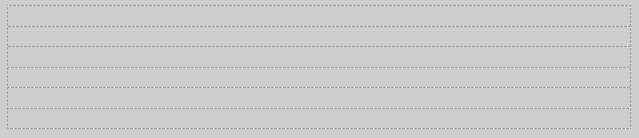
Reselect the entire table again and open the shading menu. Table Design > Shading
Set the entire table to White
|  |
Click in the top cell. In the shading menu, set your title row to a color of your choosing. I’m setting mine to mid-blue.

Enter your title and subtitle in the menu bar. Use a clear font, and high-contrast color.
Your title should be large and imposing
Change your alignment in the Table Layout > Alignment menu, to be Centered/ Left
Drag the bottom of your row down a little bit to create space above and below your titles.

Your second row will contain who is impact by the project.
In bold, add the subtitle Impacted Users: followed by the groups of employees that will be impacted by the change.
Set the alignment to Bottom/Left
Drag the bottom of the row down slightly to provide white space above the words.
Leave the third row blank and white
If the white space looks to big for you, change the font style to No Spacing and change the font size to 8 or less
Change the shading on the fourth row to a color of your selection
I suggest a shade variation of what you used for the title.
Title this section Overview

Leave the next row empty. Set the font to No Spacing and the size to 8
|  |
Set the alignment in the cell to Centered/Top
Insert a new table into this cell
1 column / 4 rows
Follow the above steps used to remove the outlines from the table.
This new insert-table will be your Required Actions table. Everything you need the readers to actually accomplish will be listed here
Set the top row to Black shading with white text. Aligned Center/Center
Use each row below for an individual step.
Add or remove rows from the table to fit the number of actions your need.
Select the entire Required Actions table and set an Outside Border around the entire table.

In the left column, you will provide a high-level overview of the release. If this is the first email for the project. Also include a 1,000ft view of the project and what problem it is solving
Leave the next row empty. Set the font to No Spacing and the size to 8
Duplicate the settings used for your Overview Row
Title this row Future Releases
List out the next 2-3 known releases coming for the project
Highlight the last two rows of the table. Right click and select Insert Rows Below
Leave the next row empty. Set the font to No Spacing and the size to 8

Create another subheading row
Title this row Resources
Leave the next row empty. Set the font to No Spacing and the size to 8
Set the alignment for the next row’s alignment to Centered
Insert table
2 rows / 3 columns
Set the borders to No Border
This table will be used to provide links to any resources you have for the employee to use.
Examples: Teams room to ask questions, Training courses, Login Link, Sharepoint housing past communications…
I like to use both Icons and titles. Both of which get hyperlinked.
In the first column, first row
Open the Insert > Icons menu
Your company may have branded icons they prefer you to use. If so, use them.
For the first column, let’s do training. Search within the icon menu for an icon that matches what you’re looking for.
Right click on the icon and select Link. Then add the correct hyperlink. Then highlight the title below the icon and hyperlink that with the same link.
In the Graphics Format menu you can change the color of Icons using the Graphics Fill option.

Highlight the last two rows of the table. Right click and select Insert Rows Below. Do it a second time.
Create another subheading row
Title this row Past Releases
List out the previous release.
Include hyperlinks to the previous communications.
To see what the email will look like to your recipients, Table Design > Borders open the Borders menu and click off View Gridlines.
This will allow you to adjust any spacing you’re not happy with, and see what the email will look like.
You've now completed a reusable template for project releases that stands out, and delivers important content to your targeted audience.

Simplifying Repeatability
You now have a basic email that you can send out for internal project updates. While this takes time to initially set up, you can simplify the task by saving the email as a Template. This way, you simply update the content in each section and send out the update.
Note: Saving these files as a draft in Outlook also works (kind of). But draft files tend to degrade over time with the formatting falling apart, and you’ll have to start over from scratch after a couple of uses.
File > Save As
Select the folder you want to save the document to
Set your Save as type to Outlook Template

This will now open as an editable file within Outlook that you can update and resend over and over.
Final Notes
You can add or remove sections from the template based on what you need for your individual project and company.
Just remember: You want the most important information highlighted up front, because people lose interest quickly.
Inserting sub-tables within the framework allows you to very precisely position content. As you saw in the base template, this allows us to add a “Required Actions” table that pops out. It also allows us to align the icons and titles within the “Resources” section so that they all perfectly line up.
You might think that all of this can be done in Word, and then the table can be copied and pasted into an email.
I highly recommend that you never do this!
Word does not play well with other programs, even other Microsoft programs. When you copy and past the table, most of the time, the font and formatting will be blown up.
For your own sanity, build your emails in

Comments